April 24, 2026
SF Symbol Icon Customization
Full control over SF Symbol icons: rendering modes, multi-color palettes, and gradients, all from the API.
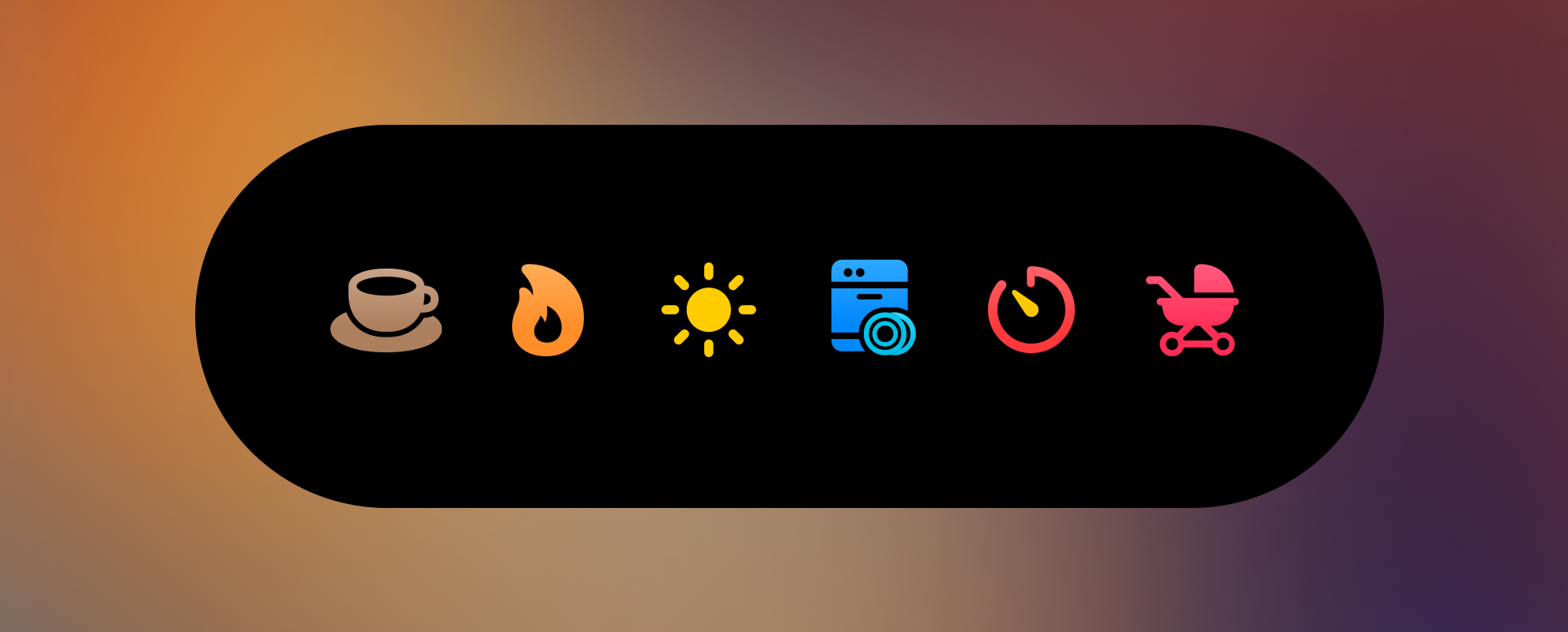
Icons have always been part of Aivi’s templates, but until now they were limited to a symbol name and a single default color. v1.4.0 changes that.
Beyond monochrome
Every SF Symbol supports multiple rendering modes that control how its layers are colored. You can now set these directly in the API payload:
- Monochrome: a single flat color. The default when no rendering mode is specified.
- Hierarchical: one color with varying opacity across the symbol’s layers, adding depth without extra configuration.
- Palette: assign distinct colors to each layer. Up to three colors (primary, secondary, tertiary) map to the symbol’s built-in layer ordering.
- Multicolor: uses the symbol’s author-defined colors. Not every symbol supports this mode; those that don’t fall back to monochrome automatically.
Color rendering
On top of choosing colors, you can control how they’re applied. The
color_rendering field switches between a flat fill and a vertical gradient,
giving icons a more polished or subdued look depending on what fits your
activity.
How it works
The icon field now accepts either a plain string (the existing behavior) or an
object with full customization options:
{
  "icon": {
    "name": "thermometer.sun",
    "rendering_mode": "palette",
    "primary_color": "red",
    "secondary_color": "orange",
    "color_rendering": "gradient"
  }
}
Passing "icon": "thermometer.sun" still works exactly as before. Nothing
breaks.
Get started
Update to v1.4.0 and head over to the Icon object docs for the full schema reference.
If you’re using Home Assistant, re-import the latest blueprints. Icon customization is now exposed directly as inputs, no manual payload editing needed.
Questions, bugs, or creative setups to share? Come say hi on the community board.