September 20, 2026 By Krzysztof Jagiello
Ready for iOS 27 and the New iPhones
Live Activities in the landscape Dynamic Island, a near-fullscreen widget size, and widgets that follow you to a new phone. What 2.1 and 2.2 change for iOS 27.
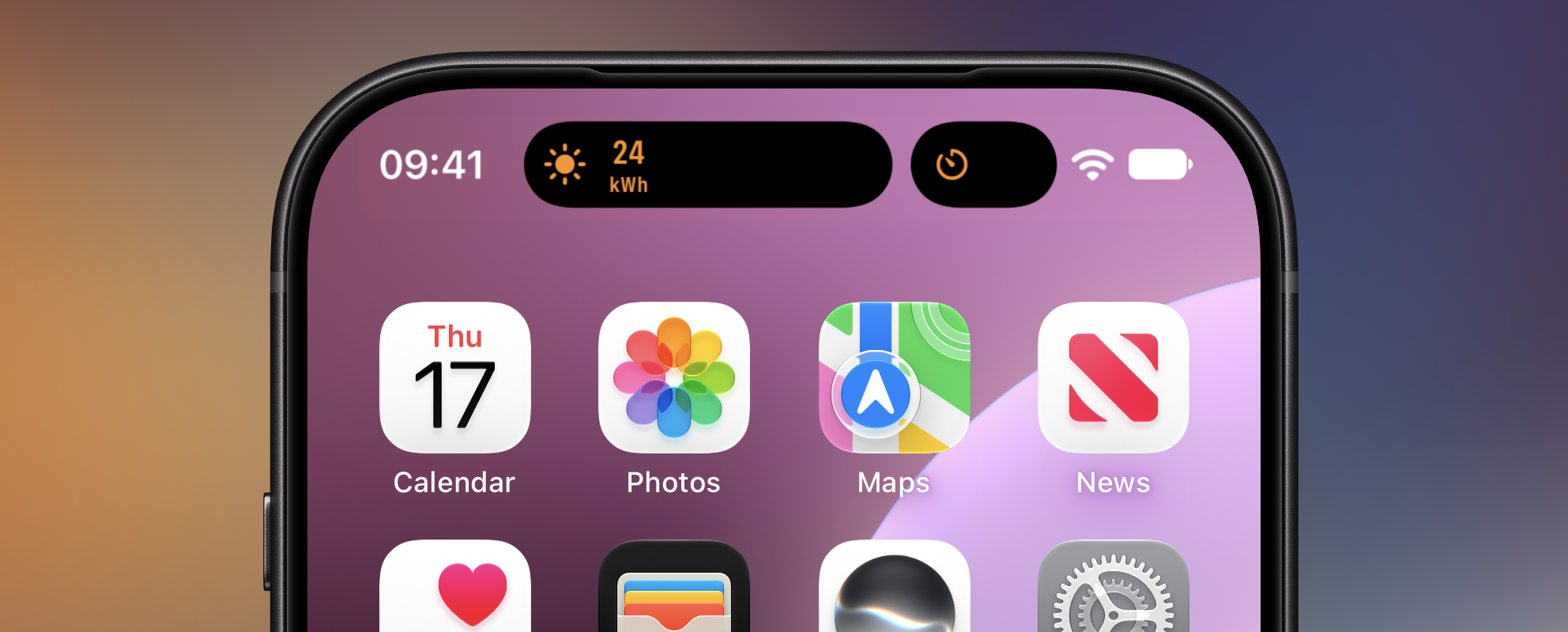
Every September the ground shifts a little. This year iOS 27 and the new iPhones moved three things Aivi lives on: the Dynamic Island, the Home Screen widget grid, and the phone itself, when you set up a new one from your old one. Versions 2.1 and 2.2 cover all three. Here is what changed and what it means for your activities and widgets.
The Dynamic Island, sideways and shared
On iOS 27 the Dynamic Island shows Live Activities in landscape too. Turn the phone and your activity stays put. And on the newest iPhones, with their narrower island, two Live Activities no longer collapse to a pair of icons: each gets a small pill of its own, with room for an icon and a value. That is what the picture above shows, an Aivi solar reading next to another app’s timer.
In both cases the room is about four characters on each side, where the wide island in portrait fits a full reading with its unit. Rather than cut text off, the templates now adapt to the width they get:
- A reading shows its number with the unit underneath:
24overkWh. Units are abbreviated, fractions are rounded, and large numbers move up a unit, so1500 Wreads1.5kW. - Countdowns and elapsed timers keep ticking, as minutes and seconds.
- A value that cannot be condensed, like a word or a clock string, steps
aside and the icon stands alone. For times,
time_untilandtime_sincevalues always fit.
Nothing changes in portrait on an iPhone with the wide island: the full compact layout is still there. The Templates docs list every unit and how it condenses.
Extra-large widgets
iOS 27 gives the iPhone a new widget size: a portrait widget that fills most of the screen. Aivi supports it as of 2.2, and it is the best home a data-heavy widget has had on the iPhone.
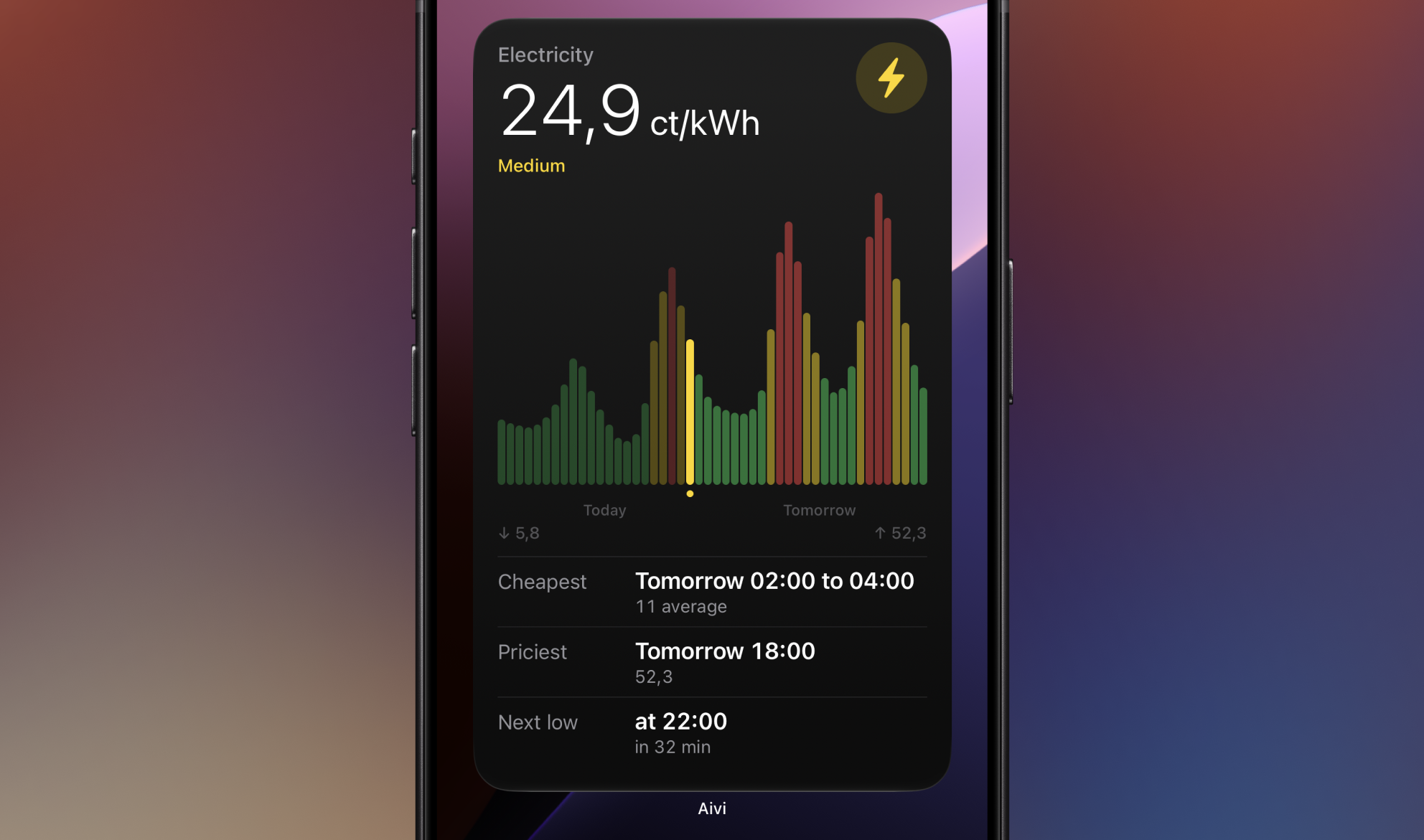
It is more than the large layout stretched onto a canvas half again as tall. Every template with more data than the large size can show got a layout of its own, and the extra height goes to that data:
- Budget becomes a ledger. The month’s total sits on top, then every category gets a row with its icon, spent of budget, what’s left, and a fill bar, sorted by how much of its budget is gone.
- Energy draws the flow. If you’ve used Home Assistant’s energy card you know the shape: sources on top, grid and home in the middle, battery below, arrows for the direction of power, and a ring around the home showing where its power is coming from right now.
- Trend lets the chart take the height and adds low, high, average, and change underneath.
- Prices shows the whole day, two days when tomorrow’s prices are in, and underneath: the cheapest window ahead, the priciest hour, and when the next low period starts.
- List and Battery fit all eight rows.
- Status, Progress, Countdown, and Gauge scale up, and the Board tiles eight widgets.
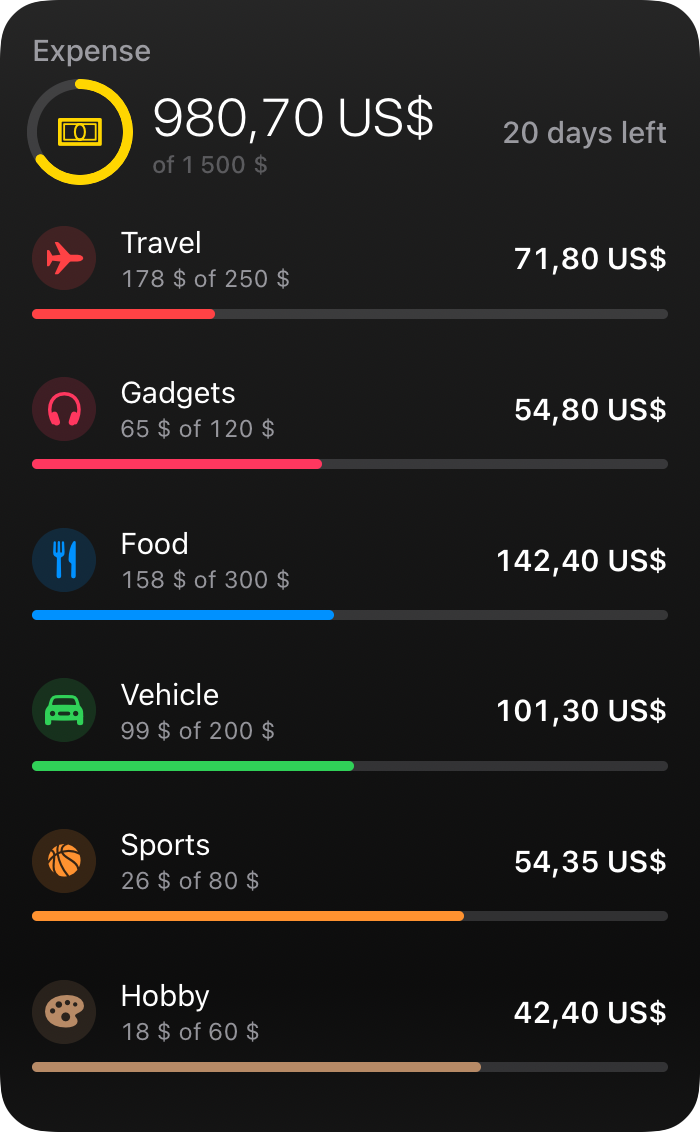
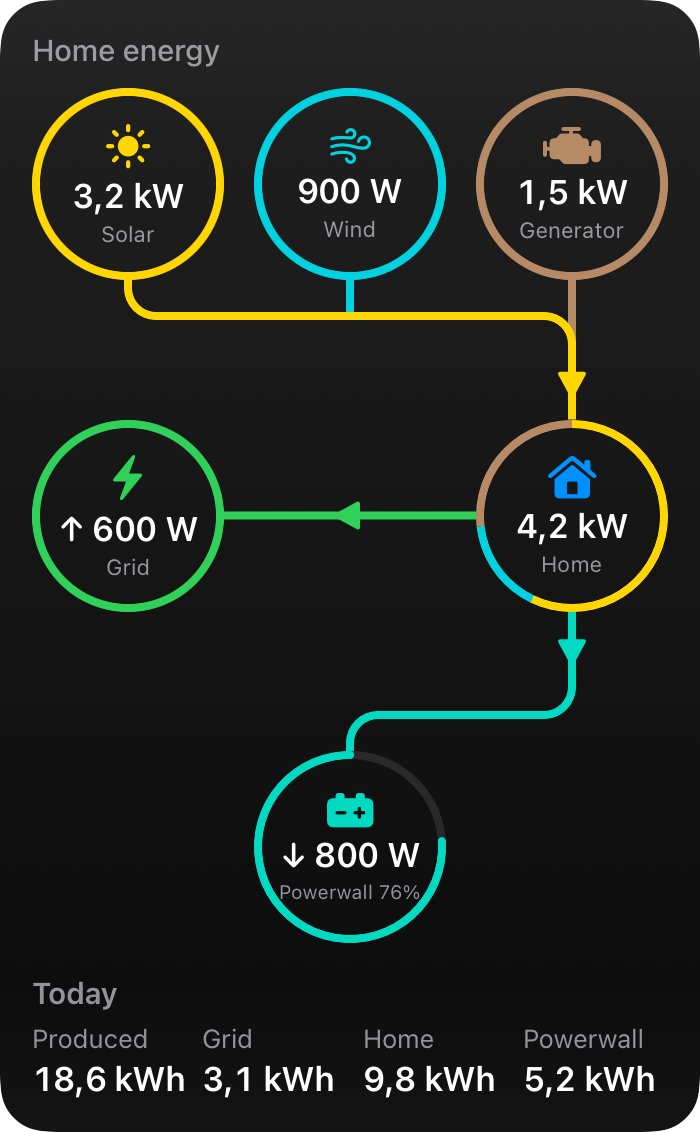
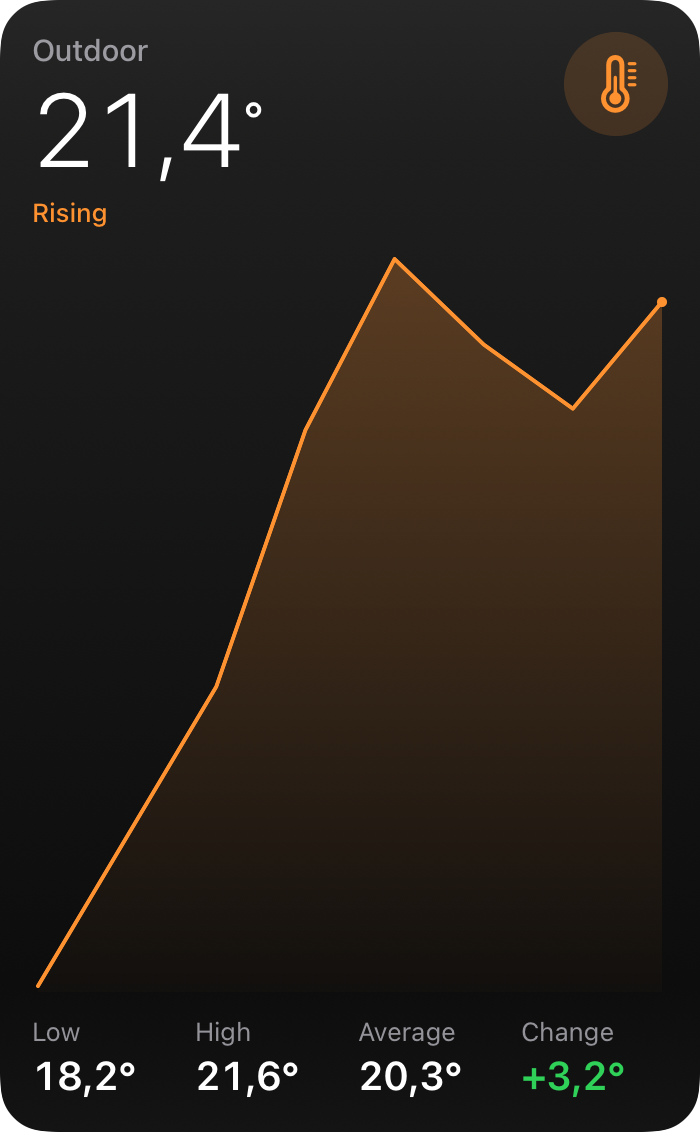
Any Aivi widget you already have can grow into it: long-press it and drag the handle in its corner up to the largest size, and the portrait layout takes over. Head to the widget templates docs to see what every template can do, or to the Home Assistant widgets guide to feed one from your sensors.
Matching Apple’s background
Smaller, but you’ll see it every day: iOS 27 gives widgets a darker background, and Aivi’s widgets used to paint their own over it, which left them a shade lighter than the Apple widgets next to them. Since 2.1 they use the same background as Apple’s own, so they match exactly, in light and dark.
When your widgets move to a new phone
Set up a new iPhone from your old one and the Home Screen comes along, Aivi widgets included. What doesn’t come along is the subscription. To Aivi a new phone is a new device, and it hasn’t subscribed to anything yet. So the widgets sat there looking fine, showing the last data they had, and never updated again. Nothing said so.
2.2 recognizes a widget that came from another phone. On the Home Screen it says “Set up on this device”, and the app shows a banner listing every widget that moved with you, with one tap to subscribe each of them here.
Get started
Update to 2.2, and if you’re on a new iPhone, open the app once: the banner will tell you if anything needs setting up. Then long-press a widget and drag it up to the new size.
Questions, bugs, or a portrait widget you’re proud of? Come say hi on the community board.