October 1, 2026 By Krzysztof Jagiello
Switchboard: Widgets You Can Press
A new widget template of buttons and toggles. Press a tile on the Home Screen and the press reaches your own system, over an event stream or a webhook.
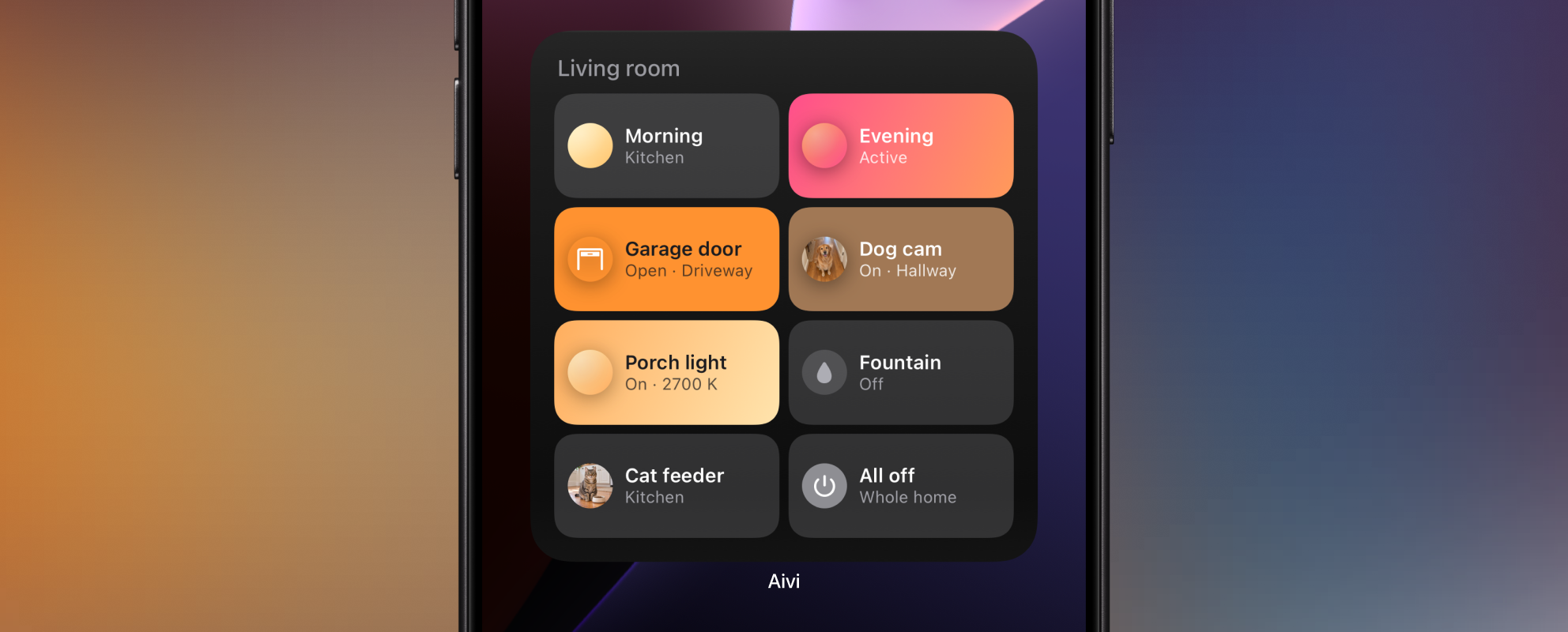
Until now, every Aivi widget answered one question: what’s going on? The temperature, the batteries, the price of power tonight. Useful, but read only. When you wanted to do something about it, you left the Home Screen.
The new Switchboard template changes that. It is a widget of up to eight tiles, and each one is a button or a toggle. Press one, and the press goes to your own system: Home Assistant, a script on a Raspberry Pi, anything that can open an event stream or receive a webhook. Your system does the work, and tells the widget what happened.
Go ahead, press something:
Buttons and toggles
A button does something once: start a scene, run a script, open the garage. A toggle has two states: a light, a fountain, a fan.
You describe the tiles in the widget’s content, the same way you publish any other widget: a label, an SF Symbol, and for a toggle, whether it is on right now. Each tile leads with a round mark that previews what the press does: a gradient of the scene’s colors, a small picture, or the symbol on a color, with a subtitle such as the room underneath. Every state word can be your own: on, off, turning on, turning off and no response for a toggle, idle, active and sent for a button. A garage door reads “Open · Driveway” and “Closing” rather than “On” and “Turning off”.
{
  "template": "switchboard",
  "actions": [
    { "id": "evening", "label": "Evening", "subtitle": { "value": "Living room" }, "icon": "sunset.fill", "gradient": ["#FF9A5A", "#FF4F8B"], "active": true },
    { "id": "porch", "label": "Porch light", "icon": "lightbulb.fill", "kind": "toggle", "on": true, "color": "yellow" },
    { "id": "cat_feeder", "label": "Cat feeder", "icon": "pawprint.fill", "image": { "url": "https://getaivi.app/demo/switchboard/cat-feeder.jpg", "alt": "The cat by its bowl" } }
  ]
}
Pictures load from a public address you host. If you don’t have one yet, the Hosting Widget Pictures guide walks through a few options.
A small widget shows four tiles, a medium one six, and the large sizes all eight under the widget’s name. On the Lock Screen and the Apple Watch the switchboard becomes a summary of how many things are on.
A tile never pretends
The hard part of a remote control isn’t sending the press. It’s being honest about what happened next. The light might be unreachable. The scene might fail. So a switchboard never decides on its own that something is on.
A filled tile means on. Press a toggle, and it takes a faint tint of its new color with “Turning on” underneath. It fills in only when your system publishes the new state. If no confirmation arrives within 15 seconds, the tile shows what your system last said, with “No response” underneath. Press a button, and you get a check and “Sent” until your system answers with its next update: the press was delivered. Whether a scene counts as running is also yours to say, by marking it active.
The confirmation doesn’t take extra work. Most setups already publish when something changes, so the change the press caused is the confirmation, and it updates the widget on every phone that shows it. The phone that sent the press waits for that update and shows it the moment it lands, so a quick system feels instant.
Two ways in
Presses arrive as events, and you pick how to receive them:
- An event stream. Your system keeps a connection open to Aivi and presses arrive on it right away. Nothing in your home has to be reachable from the internet, which makes it the easy choice for a home server.
- Webhooks. Aivi calls an HTTPS URL of yours for each press, one URL per tile or one for the whole widget. You can shape the request to fit whatever you are calling, and sign it so your receiver knows it came from Aivi.
Home Assistant
The Interactive Widgets guide has a Home Assistant recipe that turns presses into scenes and light switches with a webhook and two automations.
The fine print
- Widgets update within Apple’s widget budgets. The phone you pressed on shows your system’s answer as soon as it arrives. Other phones, and changes your system publishes on its own, appear when iOS reloads the widget: usually within minutes, sometimes later, for example in Low Power Mode or after a widget has used up its reloads for the day. See Limitations.
- Presses need a connection, and they are short lived: Aivi delivers a press for 5 seconds, and doesn’t replay presses that nobody was listening for.
- Webhooks reach public HTTPS addresses on port 443 only.
- Presses work on shared widgets too, and every press is delivered to the widget’s owner.
- Tiles take presses on the Home Screen. The Lock Screen and Apple Watch widgets and the Board show the state only, and can’t be pressed.
- A switchboard set to “Hide when locked” shows neutral tiles on a locked device, with no sign of which are on.
Get started
Update Aivi, create a widget with the Switchboard template, and read the Interactive Widgets guide to connect it to your system.
Built something with it? Show us on the community board.